🛠️ Managing Machine Users in Arena
This article explains what Machine Users are, when to use them, and how to create and manage them for system-to-system integrations in Arena.
What Is a Machine User?
A Machine User is a type of Arena user that is intended for automated system-to-system integrations with Arena where activity does not require a record of a person’s identity. Unlike Employee or Partner users, Machine Users do not represent individuals and are used when activities in Arena are performed by systems. Your Arena Account Manager can assist you in acquiring machine user licenses.
How to Choose Between a Machine User and an Employee User for Integrations
Choose an Employee user if you need to record the identity of the person performing the activity in Arena. Choose a Machine User for system-to-system integrations where a person’s identity is not required when accessing Arena.
Key Differences
| Integration Type | User Type | Arena Record |
|---|---|---|
| ERP | Machine | Arena-NetSuite Integration exported item 1000-02 |
| Component Library | Machine | Octopart-Arena Integration added datasheet |
| CAD | Human | Jorge Engineer created item 1000-02 |
| Messaging Approval | Human | Alice Manager completed quality process |
Features and Capabilities
Licensing
- Machine Users are licensed separately from Employee Users.
- Some integrations (e.g., Suite Software’s NetSuite integration), require more than one Machine User license.
- Typically used for a single integration.
Authentication Options
- Email and password
- Web Token
- Only available for Onshape-Arena Connection users
- Does not allow UI login
- OAuth
- Recommended for other secure integrations.
- Allows third-party apps access without sharing credentials.
- Does not allow UI login.
Security and Session Behavior
- Exempt from password expiration
- Supports login conflict resolution (can be configured to fail if a program is already running to prevent termination of long-running API sessions).
Configuration
All configuration, including web token & password resets of Machine Users can be done by Account Administrators, even for Cloud SSO customers
Access and Notifications
- Supports Access Policies (not Access Roles).
- Requires an Employee user owner to receive notifications sent to Machine User.
Naming Conventions and Best Practices
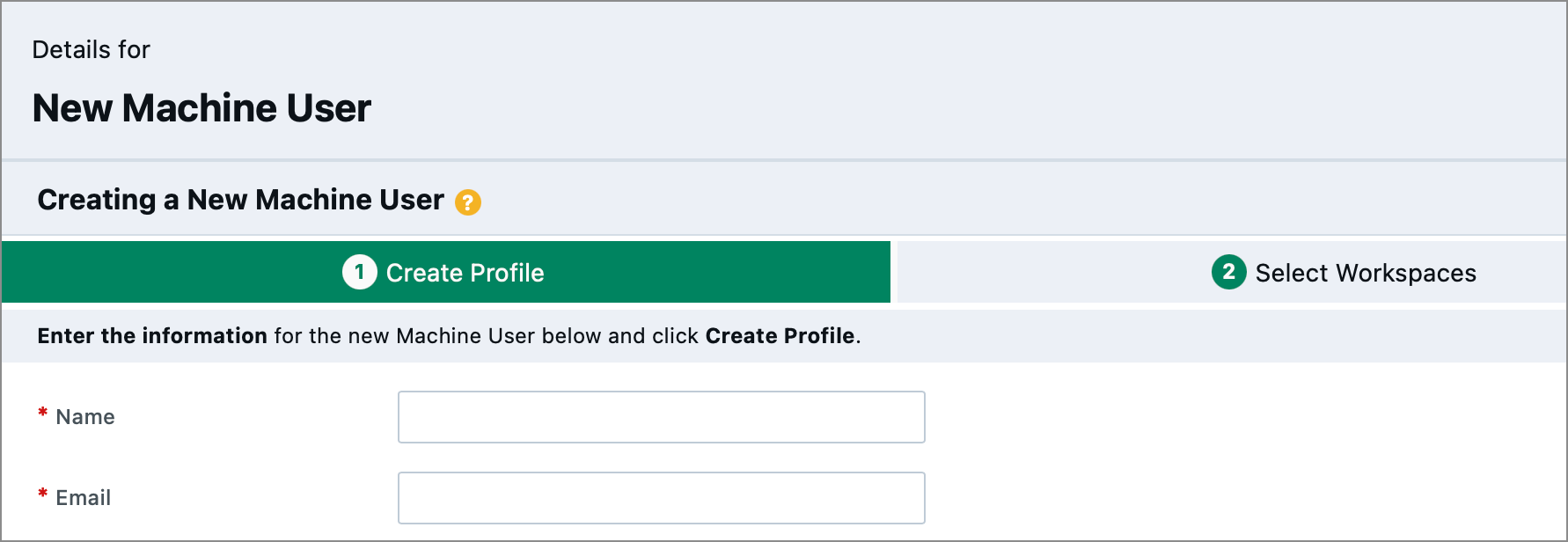
-
Name: This is the name that will appear in user/usage reports.
-
The Name field supports up to 100 characters - Don’t limit yourself to just one or two words for the Name. It can be edited at any time.
-
A machine user isn’t meant to represent a real person. Don’t try to relate the Name (or the Email) to a real person – that’s not the intent of these fields. It is better to try to disassociate the machine user from real employee users.
-
-
Email: This is only used to authenticate the machine user when connecting to Arena. It does not need to be a real email address.
-
The Email field supports up to 100 characters, so be descriptive. It can be edited at any time but changing it will have an impact on authenticating the user.
-
In both the Name and Email fields, the best practice would be to indicate the purpose of the program and the Arena workspace where the program runs.
-
Following this practice will make it easier to debug code and read reports on API usage.
-
No email is ever sent to this address.
-
-
Here are some examples of good names and email addresses for machine users:
| Application | Best Practice Name | Best Practice Email Address |
|---|---|---|
| SAP (ERP) integration in sandbox | SAP Integration Sandbox | SAP-sandbox@mydomain.com |
| Altium Nexus integration in production | Altium Nexus Integration Prod | altium_nexus_production@mydomain.com |
| Arena Connect for JIRA in production | Connect JIRA Prod | connect-jira-prod@mydomain.com |
| NetSuite On-demand Account in production | NetSuite Ondemand Prod | ns_ondemand_prod@mydomain.com |
| Reporting program in sandbox | Reporting Utility Sandbox | Reports-sandbox@mydomain.com |
-
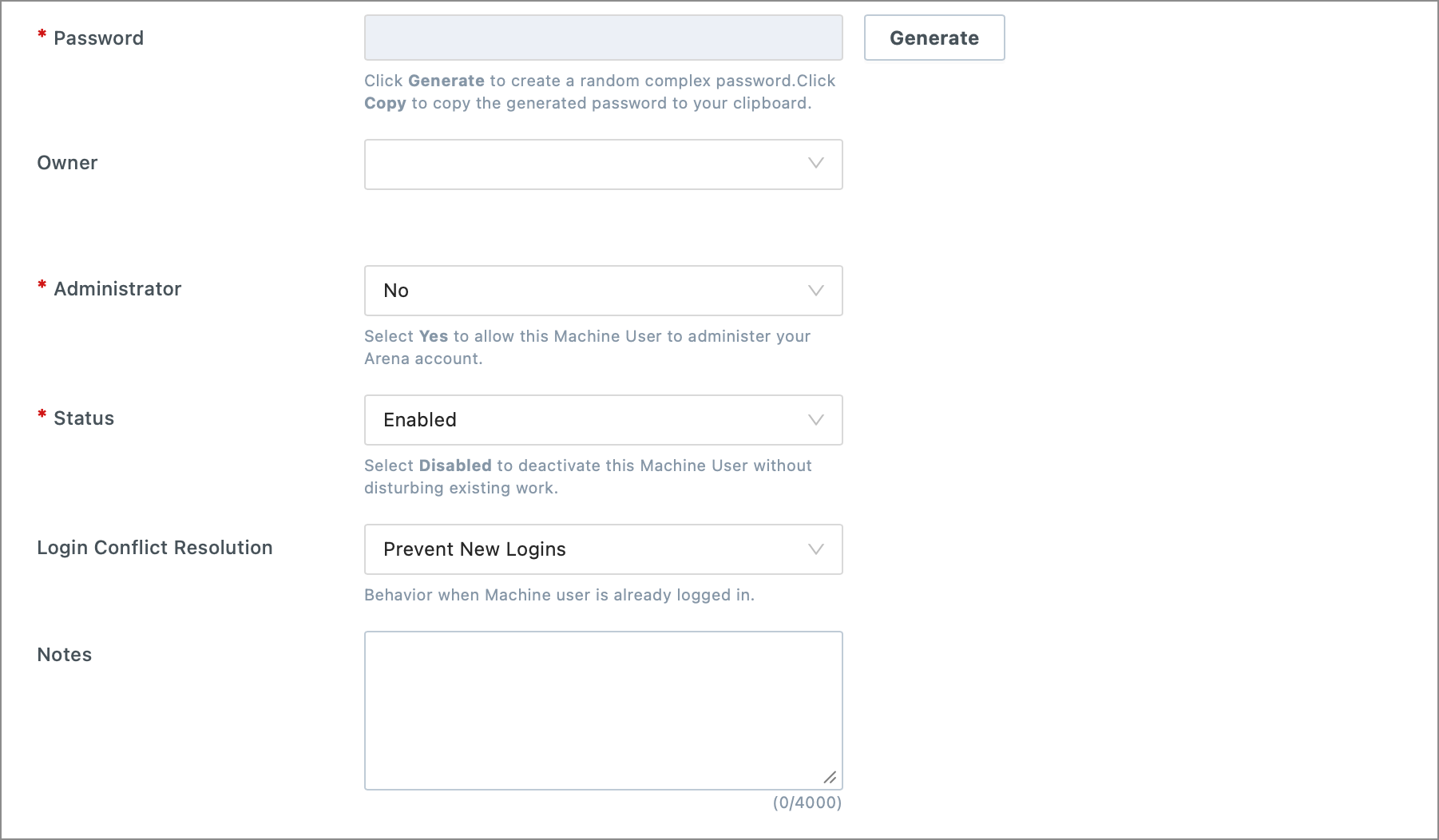
Password: Use the Generate button
-
Be sure to copy the password and record it elsewhere. It is not possible to recover it, only to generate a new one. After creating the machine user, you will be able to choose other authentication methods, if you prefer.
-
Machine Users are exempt from password expiration.
-
There are three authentication methods available:
- Email address and password: This is the least secure method, because you must store your security details along with your program and send them.
The other two methods are for programmatic (API) access only – they do not permit access to the Arena user interface:
-
Web Token: Presently this method is only supported for the Arena/Onshape connector.
-
OAuth: This is the most secure method available.
-
-
Owner: designates an Employee User responsible for the Machine User. The owner receives email notifications on behalf of the Machine User.
This can be edited at any time. This allows the owner of the machine account to be changed to a different employee without any effect on the execution of the program.
-
Administrator: If “Yes”, the machine user will have all the privileges of an Arena account administrator.
Few machine user applications actually require that the machine user be granted Arena Administrator privileges. The best practice would be to set this value to “No”. This value can be changed later.
-
Status: Normally, this would be set to “Enabled”.
This can be changed at any time. Disabling your machine user account(s) is an easy way to temporarily deal with a security issue – particularly if your machine user has Administrator privileges.
-
Login Conflict Resolution: Can choose to “Prevent New Logins” or to “Terminate Existing Session & Allow New Login”
This setting can be changed at any time. In general, choosing “Terminate…” is a better option because this can guard against runaway processes.
-
Notes: While optional, always populate this section with notes on the purpose of this machine user.
These notes can be edited at any time.
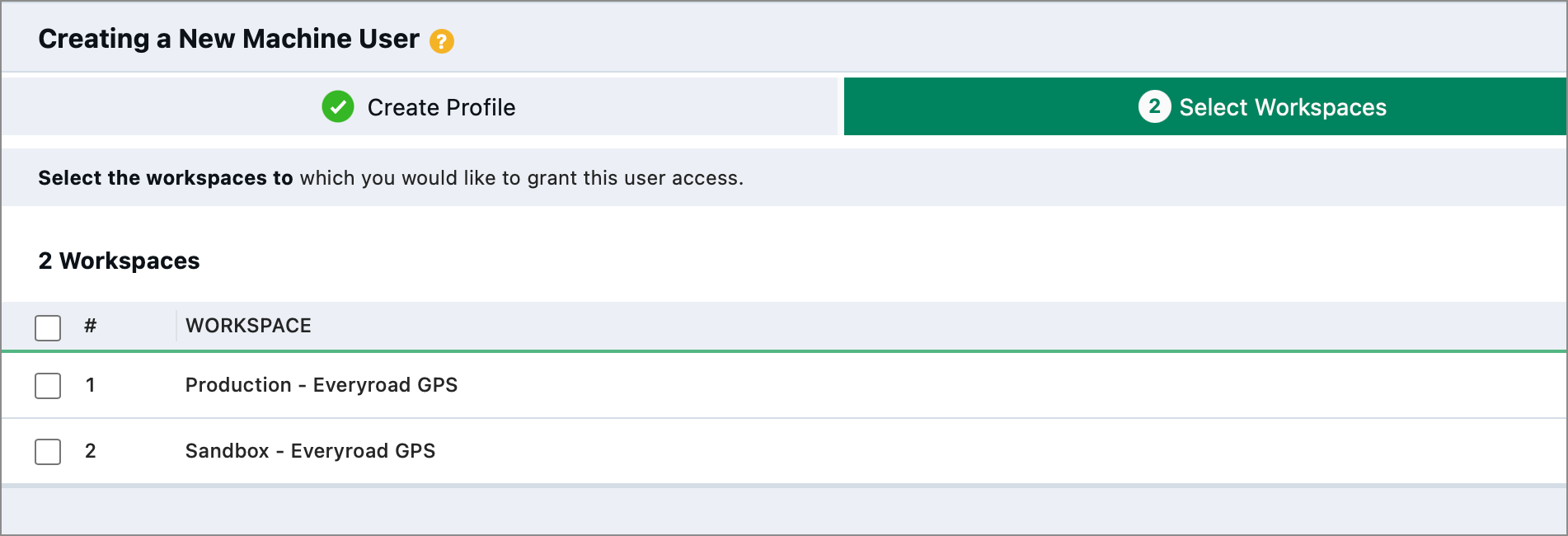
- Select Workspace Access: Select the workspace that this user needs to access
Important
Machine users should only be given access to one workspace.
-
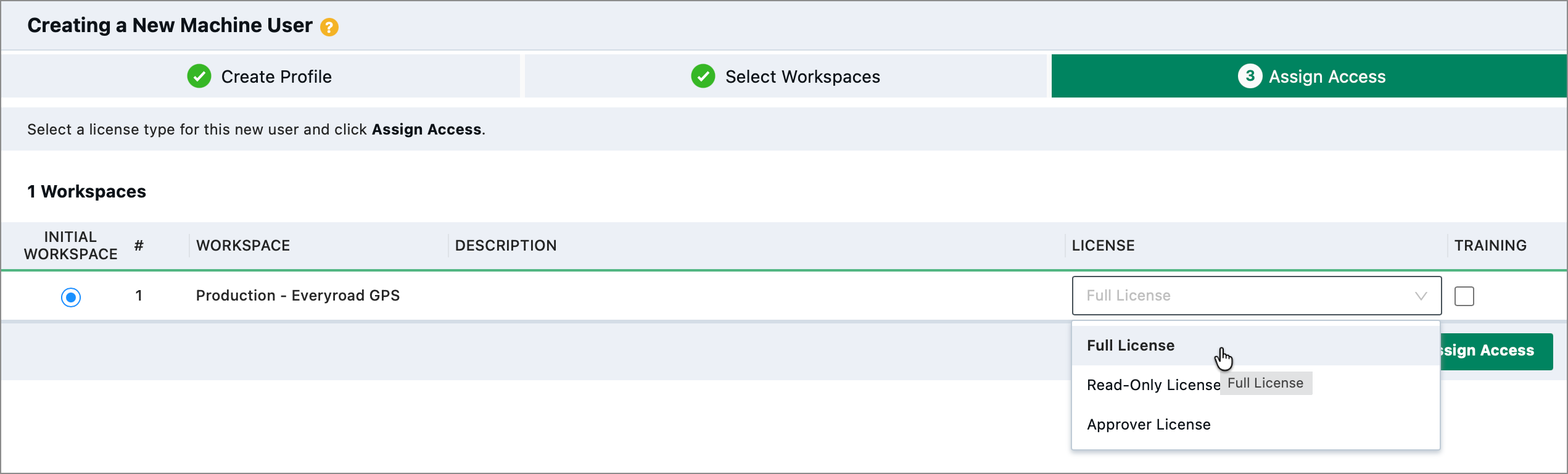
Assign Access: Select the license appropriate for this machine user
- Select Full License if your machine user will be creating content in Arena.
- You should also select Full License if your machine user needs to be an integration administrator. This will be necessary to reconcile the integration queue.
- Select Read-Only License otherwise.
- Don’t forget that machine users must be assigned Access Policies to allow them to see data in Arena.
Creating a Machine User
- Navigate to:
Workspace Settings > [Account Name] Employees > Machine Users - Click New Machine User
- Fill in required details, including a unique email address.
- Set Login Conflict Resolution preferences.
- Click Create Profile.
- Assign workspace access:
- Select workspaces via checkboxes.
- Choose License and Training options.
- Click Assign Access.
💡 The Owner field is optional and designates an Employee User responsible for the Machine User. This person receives email notifications.
Editing a Machine User
To modify an existing Machine User:
- Go to:
Workspace Settings > Users > Access > Machine. - Select the Machine User and click the pencil icon
- Update the following as needed:
- License: Required for creating/editing objects
- User Groups: Defined by workspace admins
- Policies: Provide granular control
- Training: Enable if the user interacts with the Training world
- Click Save
🔧 From the pencil icon dropdown, you can also reset passwords, generate tokens, and terminate sessions.
Workspace Access Setup
After profile creation, Machine Users have no access by default. You must:
- Go to the Workspaces tab.
- Select a workspace.
- Navigate to:
Workspace Settings > User > Access > Machine. - Select the Machine User and click the edit icon.
- Assign License, User Groups, Policies, and Training options.